VS Code Setup: Transform Your Coding
A practical VS Code setup guide covering settings, extensions, formatting, Git, terminals, debugging, testing, profiles, performance, security, and team configuration.

Visual Studio Code is useful immediately after installation, but its real strength appears when the editor is configured around a specific workflow. A thoughtful setup reduces repetitive navigation, keeps project commands close at hand, makes code quality visible earlier, and avoids the performance problems caused by installing every popular extension.
This guide builds a practical VS Code setup for 2026 without treating one configuration as universal. It explains the difference between user and workspace settings, recommends a small extension strategy, covers formatting, source control, terminals, debugging, testing, profiles, synchronization, performance, accessibility, and the choices teams should commit to a repository.
Before You Customize VS Code
Install the current stable release from the official Visual Studio Code website and make sure the command-line launcher is available. Opening a project folder rather than individual files gives the editor the workspace context required for tasks, source control, testing integrations, and project-specific settings.
Start with the default interface for a short period. Customization is most valuable when it solves an observed problem: slow navigation, inconsistent formatting, missing language intelligence, noisy diagnostics, or a command that is repeatedly typed. Installing a large extension pack before understanding the baseline makes conflicts and performance regressions harder to diagnose.
A maintainable setup starts with a small core configuration, adds language tooling per project, and reviews extensions periodically. The goal is a predictable editor—not the largest possible collection of features.
User Settings vs Workspace Settings

VS Code separates user settings from workspace settings. User settings follow you across projects and are appropriate for personal choices such as font size, color theme, cursor behavior, and interface layout. Workspace settings live with a folder or workspace and override user settings when that project is open.
Team-relevant behavior belongs in the repository only when everyone benefits from the same result. Formatter selection, format-on-save policy, file exclusions, language-specific defaults, test discovery, and project tooling are reasonable workspace candidates. Personal zoom level, preferred theme, and most keyboard choices should remain user settings.
- Keep personal appearance and ergonomics in user settings.
- Keep reproducible project behavior in .vscode/settings.json.
- Use language-specific settings when JavaScript, Python, Markdown, or another language needs different rules.
- Review workspace files before trusting a downloaded repository because editor configuration can influence commands and tooling.
Essential Editor Settings That Improve Daily Work
A useful baseline improves readability and makes automated edits deliberate. Enable format on save only after selecting a formatter for the project, use code actions on save selectively, show whitespace when diagnosing formatting problems, and choose a word-wrap policy appropriate for the files you edit. Autosave can be convenient, but teams using aggressive formatters or generators may prefer explicit saves.
Avoid copying an enormous settings.json from another developer. Settings change over time, extensions contribute their own options, and a configuration optimized for a large monitor may be uncomfortable on a laptop. Add settings in small groups and keep a short comment or commit explanation for project-level choices.
A useful division of responsibility is to let the formatter handle layout, the linter explain code-quality rules, and the type checker detect structural mistakes. Overlapping tools create duplicate diagnostics and confusing save behavior.
Build a Small, Purposeful Extension Set
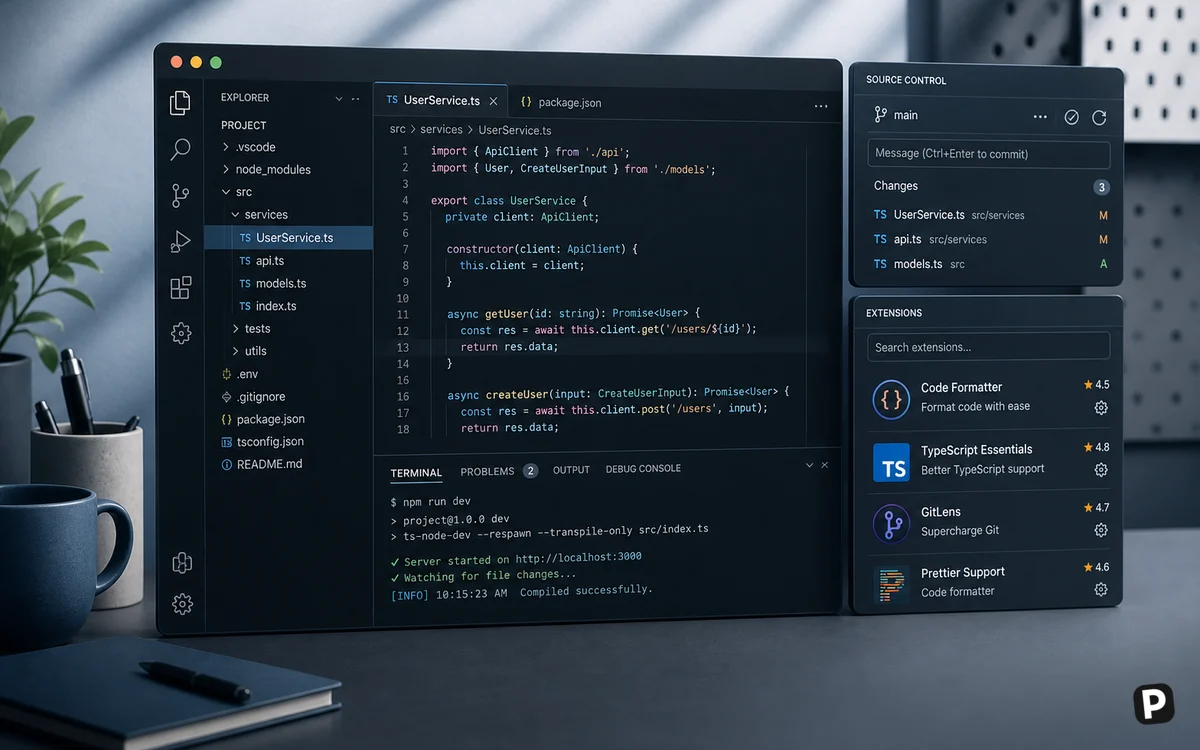
Extensions can add language servers, debuggers, test adapters, formatters, source-control helpers, containers, themes, and AI tools. They can also consume memory, add startup work, overlap with built-in features, and receive access that deserves review. Install from publishers you recognize, inspect permissions and repository activity, and remove extensions that no longer serve an active workflow.
- One primary formatter for each language or project.
- The language extension officially recommended by the language or tool vendor when available.
- A linter integration that uses the project's own configuration.
- Testing and debugging support only for frameworks currently in use.
- Optional Git or collaboration helpers after learning VS Code's built-in source-control workflow.
If the editor becomes slow or behaves unexpectedly, use an Empty Profile or the extension bisect workflow to compare the core editor with your customized environment. This is faster than randomly disabling extensions one at a time.
Configure the Terminal and Source Control

The integrated terminal is most effective when it opens with the shell and environment your project expects. Configure a default terminal profile, confirm that language runtimes are resolved correctly, and use named terminal profiles when work requires different shells. Do not store secrets in editor settings or task files committed to source control.
VS Code includes Git support for reviewing changes, staging files, writing commits, resolving conflicts, and synchronizing with a remote. Before committing, inspect the diff rather than relying only on the file count. Source-control extensions can add helpful context, but they should complement—not replace—understanding the repository state.
Debug, Test, and Automate Repeated Commands
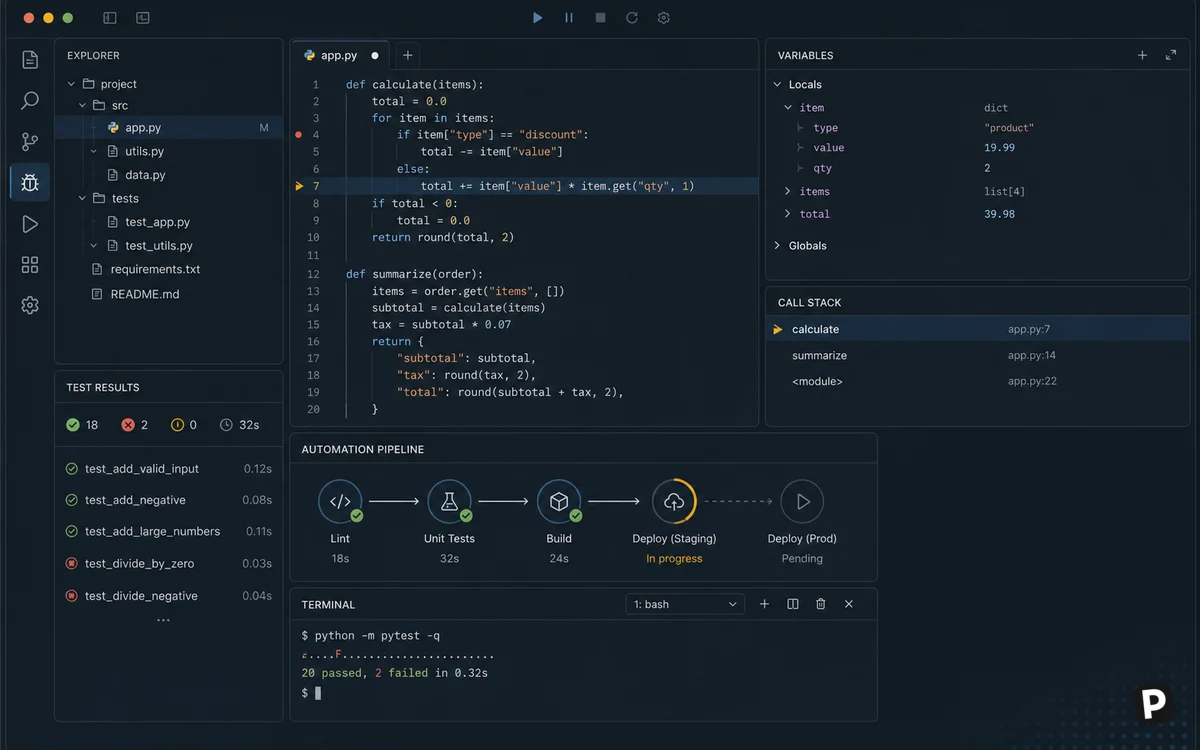
A proper debugger provides breakpoints, step controls, variable inspection, watch expressions, and call stacks. Language support determines the exact setup: some environments work with minimal configuration, while others need a launch.json file. Keep shared launch configurations focused on reproducible scenarios such as starting the application, attaching to a service, or running a test target.
Testing support is commonly supplied by language or framework extensions. Compatible integrations can discover tests, run or debug individual cases, display results in the editor, and report coverage. Treat the command-line test runner as the source of truth so the same test suite also works in continuous integration.
Tasks are appropriate for repeatable project commands such as linting, building, packaging, or starting a development server. Store team-safe tasks in .vscode/tasks.json, give them descriptive labels, and avoid embedding machine-specific absolute paths.
Use Profiles and Settings Sync Deliberately
Profiles bundle customizations so one VS Code installation can support distinct workflows. A web-development profile might contain TypeScript tooling and browser debugging, while a documentation profile can remain lightweight. Profiles can also help diagnose problems: an Empty Profile disables modified settings and extensions, providing a clean comparison with the core editor.
Settings Sync can share settings, keyboard shortcuts, extensions, snippets, tasks, and profiles across signed-in installations. Review what is included before enabling it on a managed or shared machine. VS Code notes that extension synchronization behaves differently in remote windows such as SSH, development containers, and WSL, so verify remote tooling independently.
Performance, Security, and Accessibility
When startup or typing feels slow, inspect running extensions, disable unused workspace features, exclude generated directories from expensive file watching where appropriate, and compare the project in an Empty Profile. Very large repositories may need targeted search and watcher exclusions, but broad exclusions can hide files developers actually need.
Workspace Trust exists because opening unfamiliar code can expose tasks, debugging configurations, extensions, and project settings. Review repositories before granting full trust, keep the editor updated, and be conservative with extensions that execute external tools or handle credentials.
Accessibility is part of a professional setup. Adjust zoom and font size without compressing line height, choose a theme with sufficient contrast, enable screen-reader optimization when needed, and learn keyboard navigation for the Command Palette, panels, editors, and focus movement. A visually fashionable theme is not useful if diagnostics and selections are difficult to distinguish.
What Should a Team Commit to the Repository?
- Formatter, linter, and language settings required for consistent project output.
- Recommended extensions with a short reason for each recommendation.
- Repeatable tasks and launch configurations that work without private local paths.
- Project snippets only when they encode a convention the team actively maintains.
- Documentation for required runtimes, environment variables, and commands outside the editor.
Editor configuration should reinforce repository tooling rather than become the only place where that tooling works. A contributor using another editor should still be able to install dependencies, format, lint, test, build, and run the project from documented commands.
A small shared settings file might enable format on save, name the project's agreed formatter, request explicit ESLint fixes, exclude generated output such as .next or dist from the file explorer, and enable word wrapping for Markdown. Keep that file deliberately short so every committed setting has an understood project-level purpose.
Official VS Code Resources
VS Code changes frequently, so confirm feature behavior and setting names in the official documentation before copying configuration into an important project.
VS Code Setup Frequently Asked Questions
How many VS Code extensions should I install?
There is no ideal number. Install the smallest set that supports the languages and workflows you currently use, then remove redundant or inactive extensions. Publisher trust, maintenance, activation cost, and overlap matter more than the raw count.
Should settings.json be committed to Git?
Commit workspace settings that make project behavior reproducible. Keep personal appearance, local paths, machine-specific commands, and private information in user settings or ignored local configuration.
What is the difference between a profile and a workspace?
A profile is a reusable set of editor customizations such as settings and extensions. A workspace represents one or more project folders and can contain settings, tasks, and launch configurations for that project.
Why does VS Code become slow after customization?
Common causes include extensions, language servers scanning large directories, expensive file watchers, very large files, and overlapping format or lint actions. Compare performance with an Empty Profile and use built-in diagnostics before changing settings at random.
Is Settings Sync enough to back up a development environment?
No. It helps synchronize editor configuration, but it does not replace repository history, dependency manifests, dotfile management, environment documentation, secret storage, or backups of local work.
Should beginners copy a popular VS Code configuration?
Use public configurations as references, not as unexplained replacements. Start with defaults, add one improvement at a time, and understand whether each setting belongs to you, the language, or the project.
Key takeaways
- Separate personal user settings from reproducible workspace settings.
- Install a focused extension set and use an Empty Profile when diagnosing editor problems.
- Keep formatting, linting, testing, debugging, and tasks aligned with commands that also work outside VS Code.
- Use Profiles and Settings Sync deliberately rather than treating synchronization as a complete environment backup.
- Review workspace trust, extension publishers, performance, and accessibility as part of the setup—not as afterthoughts.
More in Services & Software
Browse Services & Software